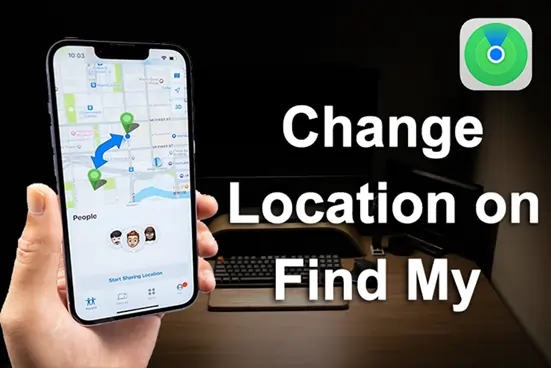
If you’ve ever tried to change your location on Find My iPhone, you’ve probably noticed one thing right away: it’s not as simple as it sounds. There’s no obvious setting, no quick toggle, and definitely no “set location” option. So what can you actually do? Well, that comes down to your goal. Some people just want a quick workaround, while others want full control over their location. And the two situations are pretty different.
Why Changing Location Isn’t Straightforward
Your iPhone doesn’t randomly display a location; it constantly calculates it using GPS, nearby Wi-Fi networks, and cellular data. That means your location is always tied to where your device actually is. So when people search how to change location on iPhone Find My, they’re usually trying to do one of these below. Each goal requires a different approach.
- Show a different location.
- Stop sharing their location.
- Or simulate a completely new one
Method 1: Set Another Device as Your Location
If you already use multiple Apple devices, there’s a built-in way to shift what shows up as your location. Open Find My on another device, sign in with the same Apple ID. Go to “Me”, tap Use This Device as My Location. After that, your location will reflect wherever that device is.
When this works well:
- You already have a second device
- You only need a basic change
- You don’t need movement simulation
Limitations:
- You can’t freely choose any location
- It’s still tied to a physical device
Method 2: Turn Off Location Sharing
If your goal is simply to stop others from seeing your location, this is the quickest option. Go to Settings, tap your Apple ID. Open Find My, turn off Share My Location. This immediately hides your location.
Keep in mind that your location won’t be replaced; it just disappears. And it is not useful if you want to display a different place.
Method 3: Use Airplane Mode (Temporary Only)
This method doesn’t really “change” your location, but it can freeze it. When Airplane Mode is on, your last known location stays visible; no updates are sent.
Pros:
- Instant and easy
Cons:
- No internet access
- Only works short-term
- Doesn’t give you control over the location
Method 4: Modify Your GPS Location (Most Flexible Option)
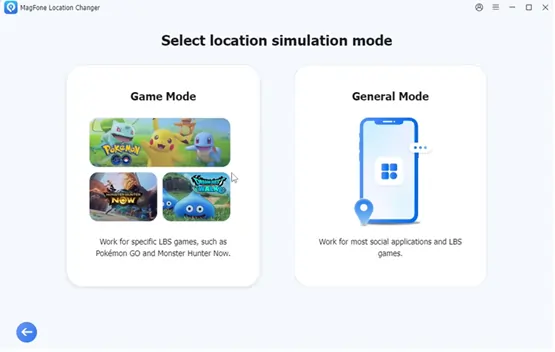
If you want full control, like choosing any location or even simulating movement, this is where third-party tools come in. Software like MagFone Location Changer allows you to adjust your device’s GPS data directly. Once that’s done, apps like Find My simply follow that updated location. For most users, this is the only method that actually feels flexible.
Why this method stands out:
- You can change your position to any place in the world
- You can simulate movement naturally
- No jailbreak required
- Works across multiple apps
How It Works in Practice
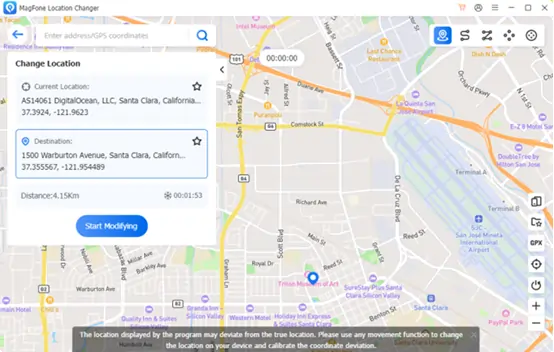
It’s much simpler than people expect. You just connect your iPhone to a computer, open the tool like MagFone Location Changer. Select General Mode, and choose any location you would like to change on the map. Click the Start Modifying button, and within seconds, your location updates system-wide.
When People Usually Need This
Changing location isn’t always about “faking” it. There are practical reasons behind it.
- Privacy: Not everyone wants their real-time location shared constantly.
- App Testing: Developers often need to simulate different locations.
- Gaming: Location-based games like Pokémon GO rely heavily on movement.
- Content Access: Some apps show different features depending on your region.
What You Can Ignore
There’s a lot of misinformation out there, so here’s what usually doesn’t work:
- VPNs → only affect your IP, not GPS
- Changing region settings → no impact on Find My
- Random mobile apps → most don’t work on iOS
FInal Thoughts
Changing your location on Find My iPhone isn’t something Apple makes obvious, but once you understand the logic behind it, the options become clear. If you just need a quick adjustment, using another device or turning off sharing might be enough.
But if you want real control, like choosing where your location appears, then using a proper location changer solution is the only way to do it reliably. At that point, it’s less about finding a trick and more about using the right method for what you actually need.